Set up a form
1
Add the PDF
In AI Agent → Knowledge, add the PDF like any other document. A fillable
PDF works, and so does a printed form with selectable text. A scan works
too, once you draw its questions yourself.
2
Share it with customers
Open the document’s menu and choose Share with customers. Turn on
Customers can receive it, then Customers can fill it in.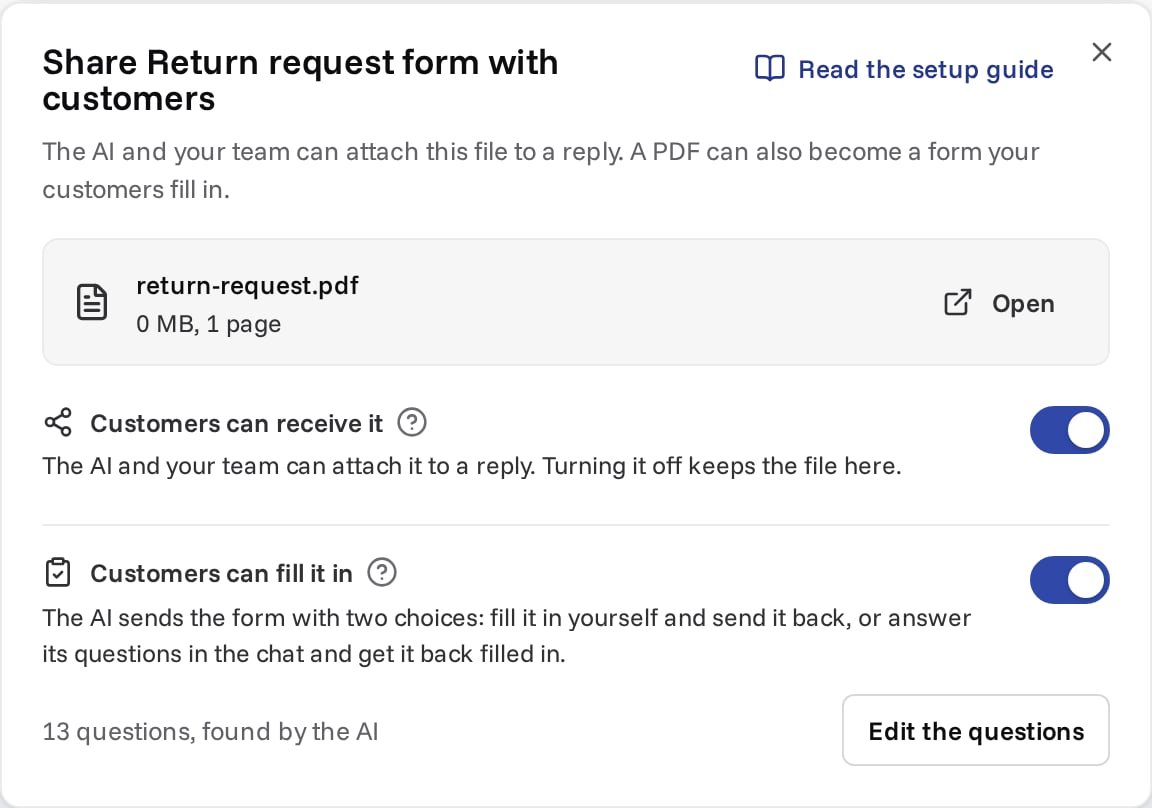
3
Add the questions
Choose Find the questions to have the AI read the PDF, or Add them
yourself to draw a box on the page wherever an answer goes. Either way you
land in the editor.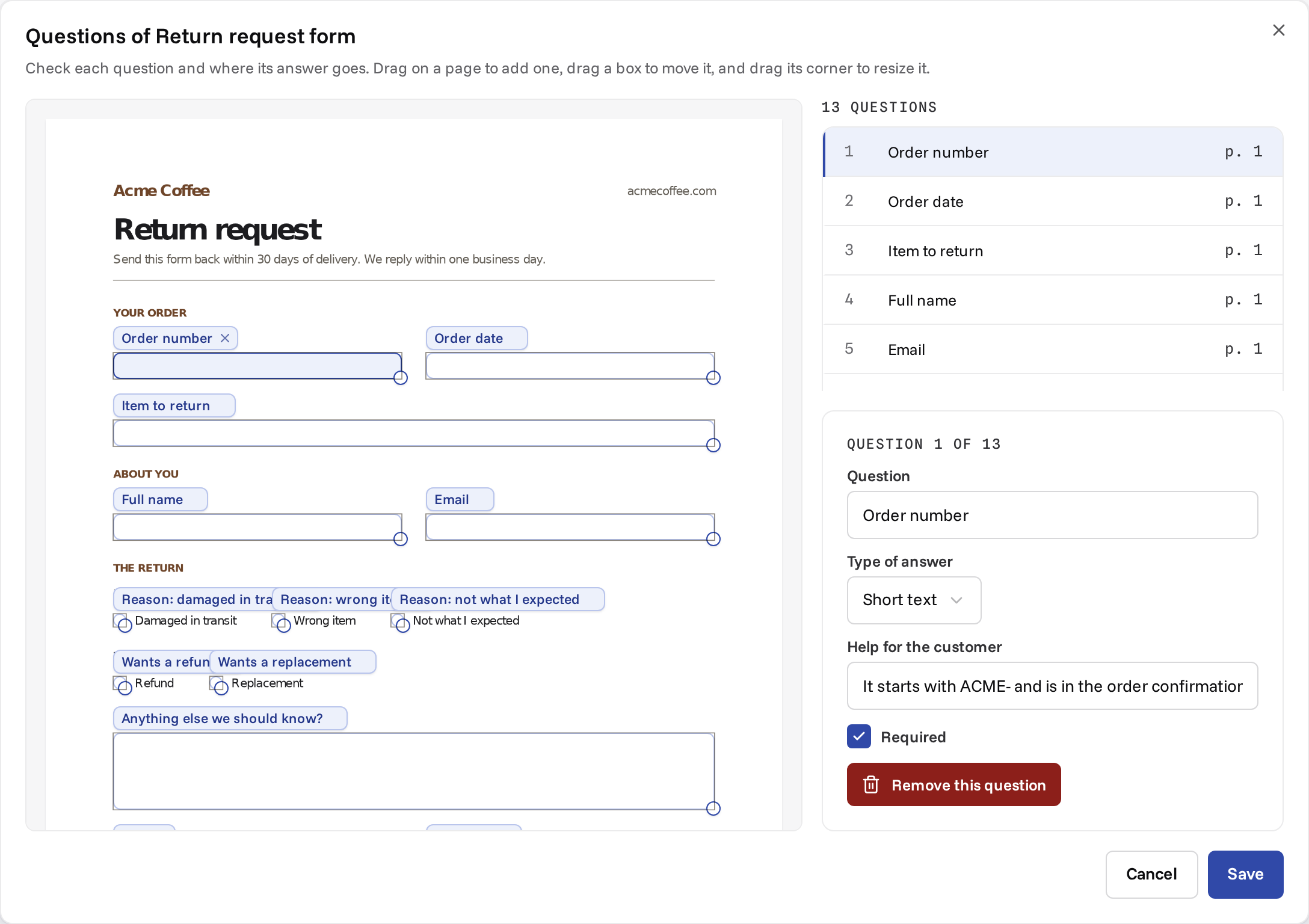
- its wording and type of answer;
- Required: the AI does not finish the form without it;
- Help for the customer: what the AI may add when it asks, such as where to find an order number.
What the customer sees
When a customer needs the form, the AI attaches it to its reply with two choices. In the chat they are buttons. On email and the other channels, the AI asks the same question in words.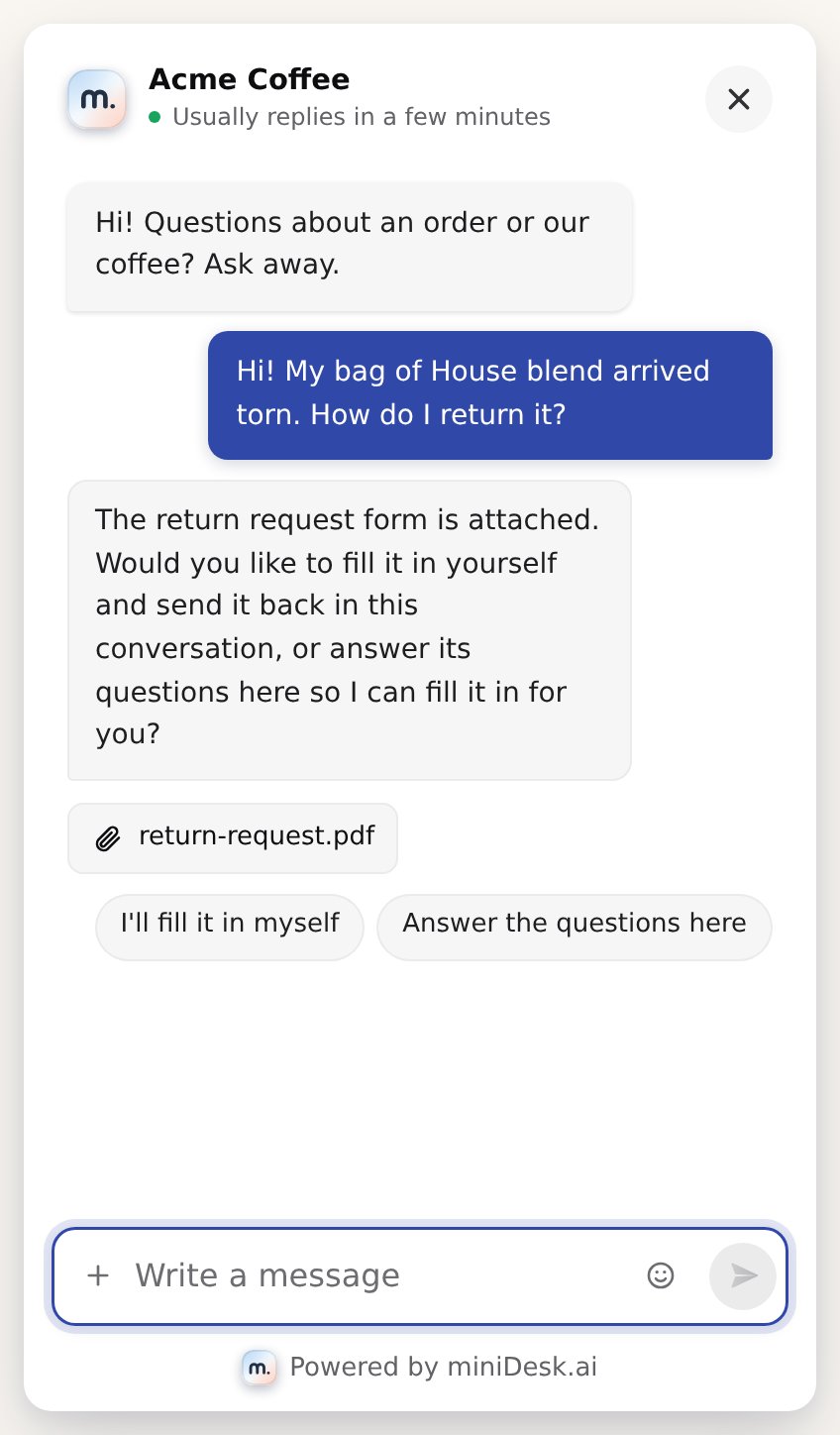
The form arrives with its two choices.
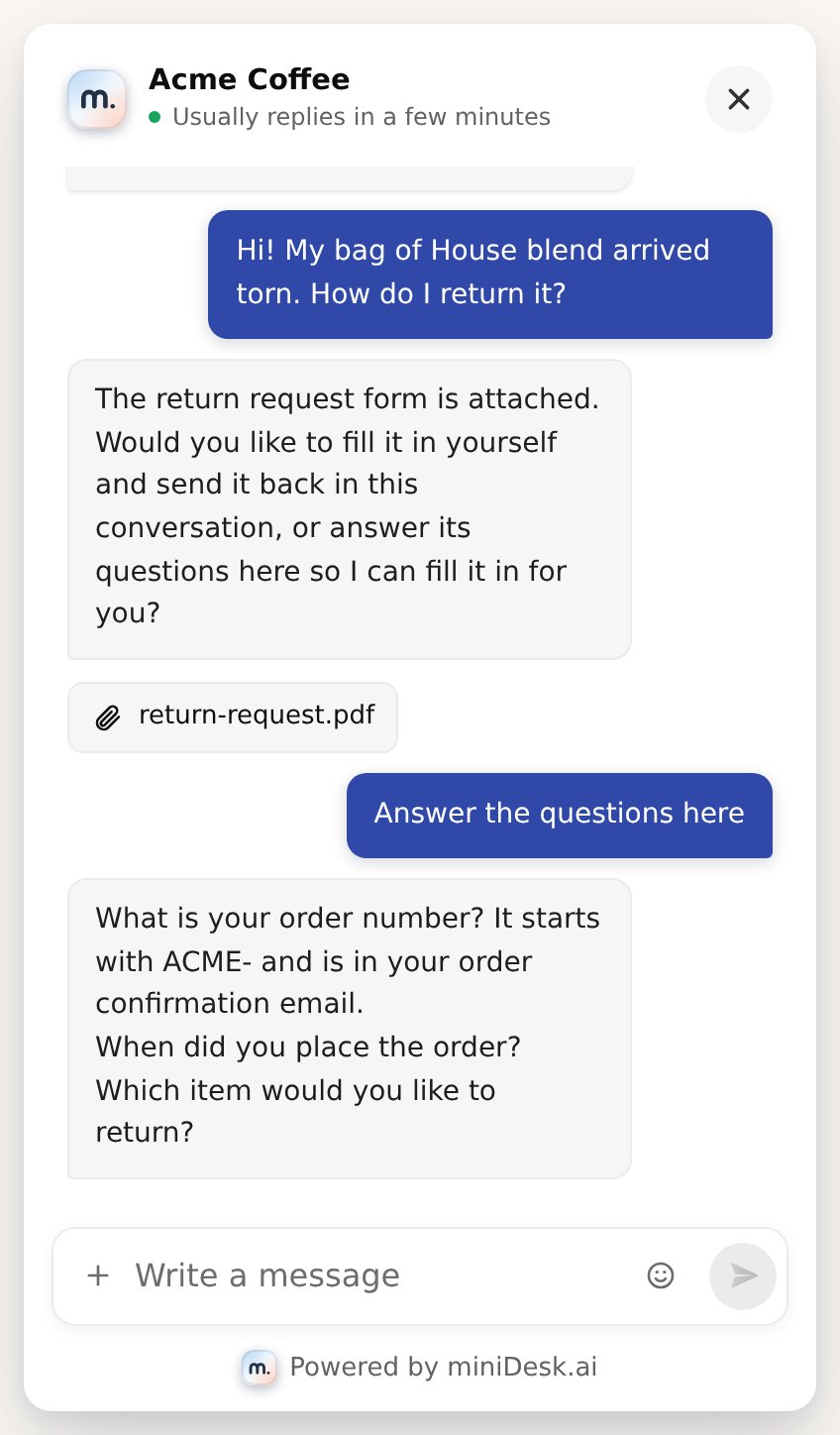
Answering here: the AI asks a few questions at a time.
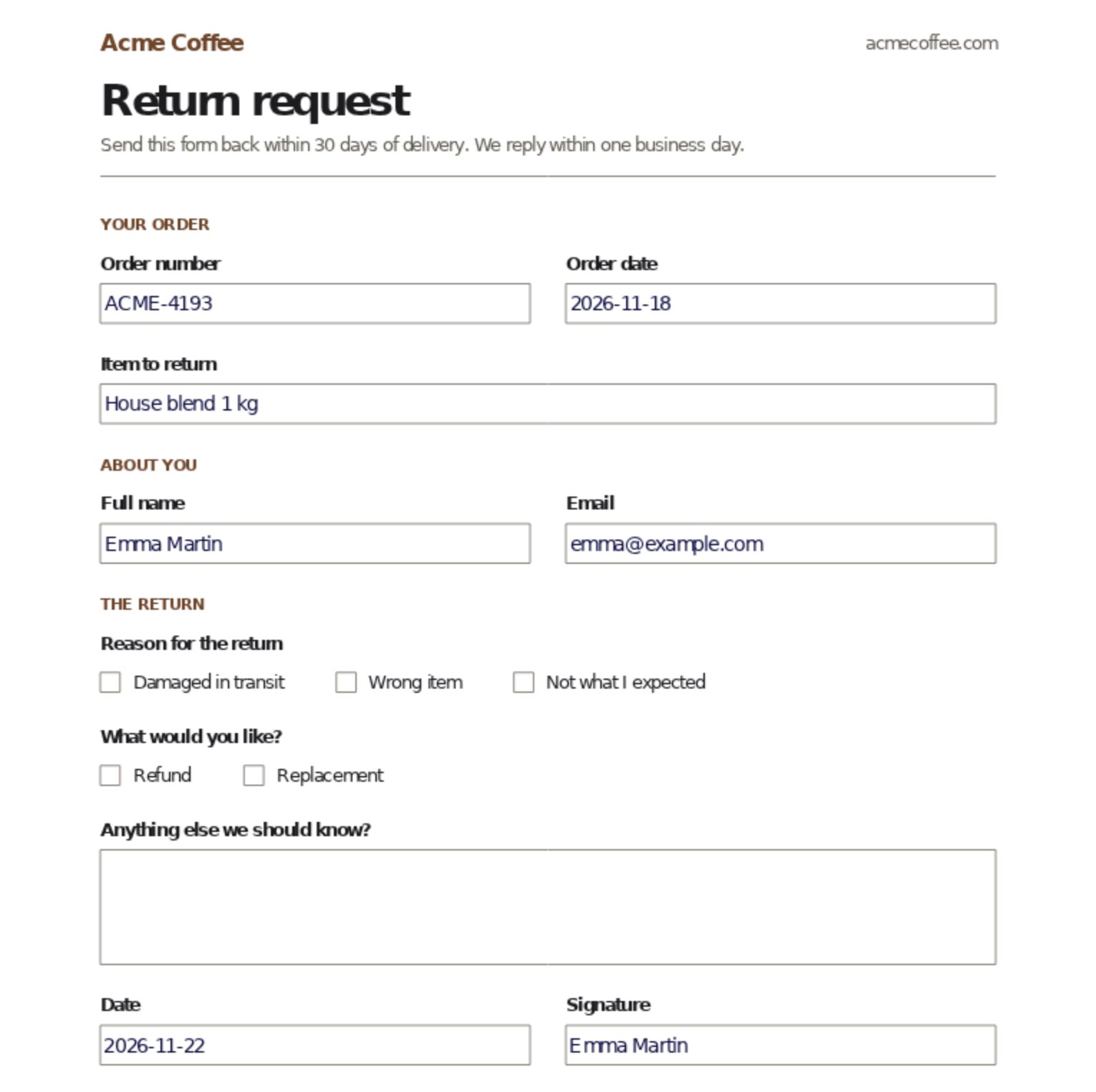
The PDF the customer gets back.
The AI sends the form and asks its questions by itself only when AI auto reply
is on for the channel. Otherwise each of its replies waits as a draft for your
team to send. Once a teammate writes in the conversation, its replies are
drafts again.
What your team sees
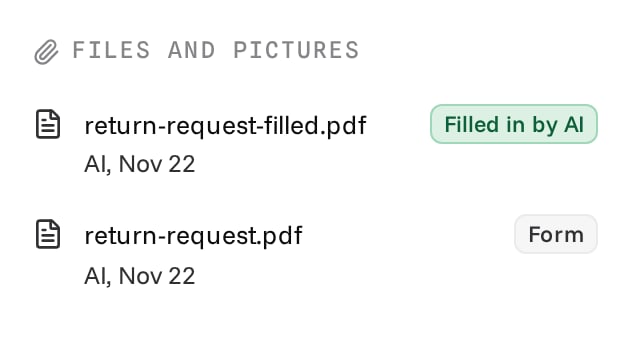
The finished form is in the conversation, and under Files and pictures in its side panel with a badge: Filled in by AI or Filled in by customer. Once the form is complete, the conversation goes back to your open queue and its assignee is notified.