

Running a WooCommerce store? The same plugin lets the AI answer “where is my
order?” with real status and tracking. See WooCommerce.
Install and connect
1
Install the plugin
In your WordPress admin, go to Plugins → Add New, search for
“miniDesk”, and install miniDesk AI. Click
Activate.
2
Click Connect
Go to miniDesk AI in the WordPress admin menu and click Connect with
miniDesk.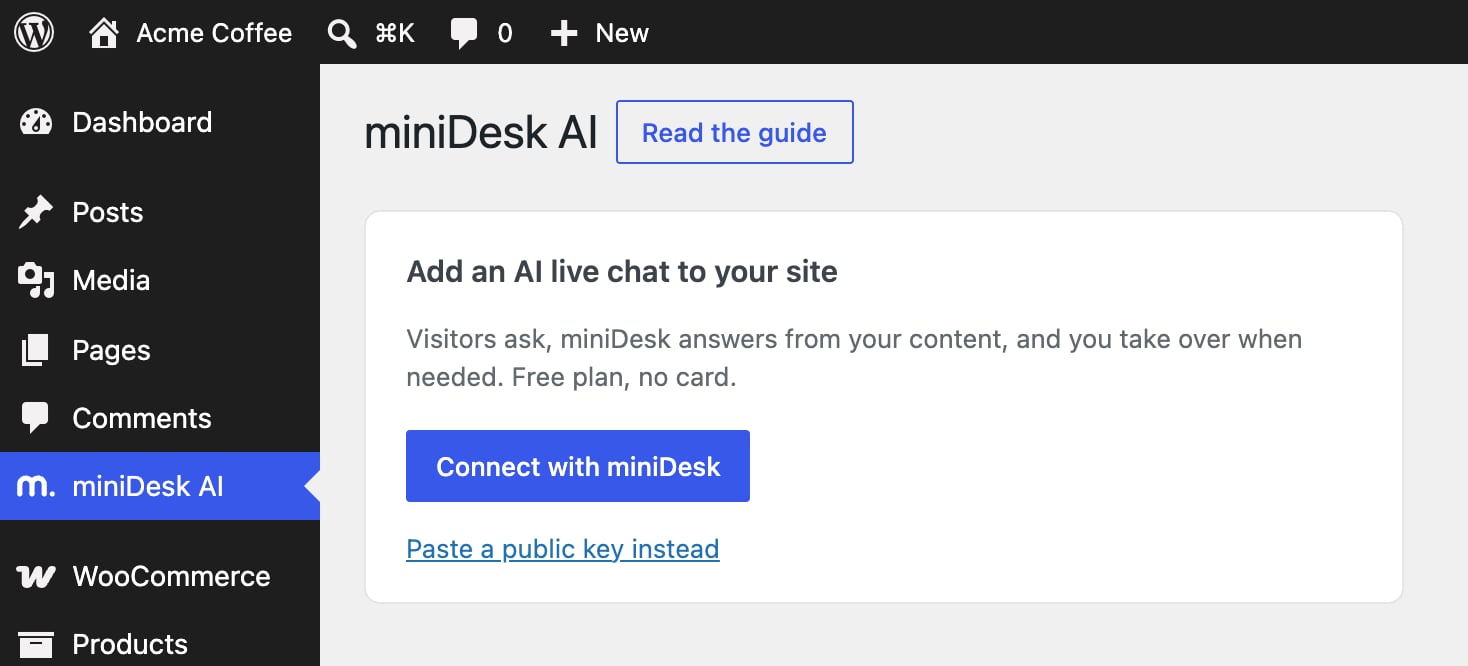
3
Sign in and pick a workspace
You land on miniDesk.ai. Sign in, or create an account if you do not have
one yet, then pick the workspace this site belongs to.
4
Click Connect
The Connect screen shows what connecting changes. Click Connect, and
you are sent back to WordPress with the chat live on your site.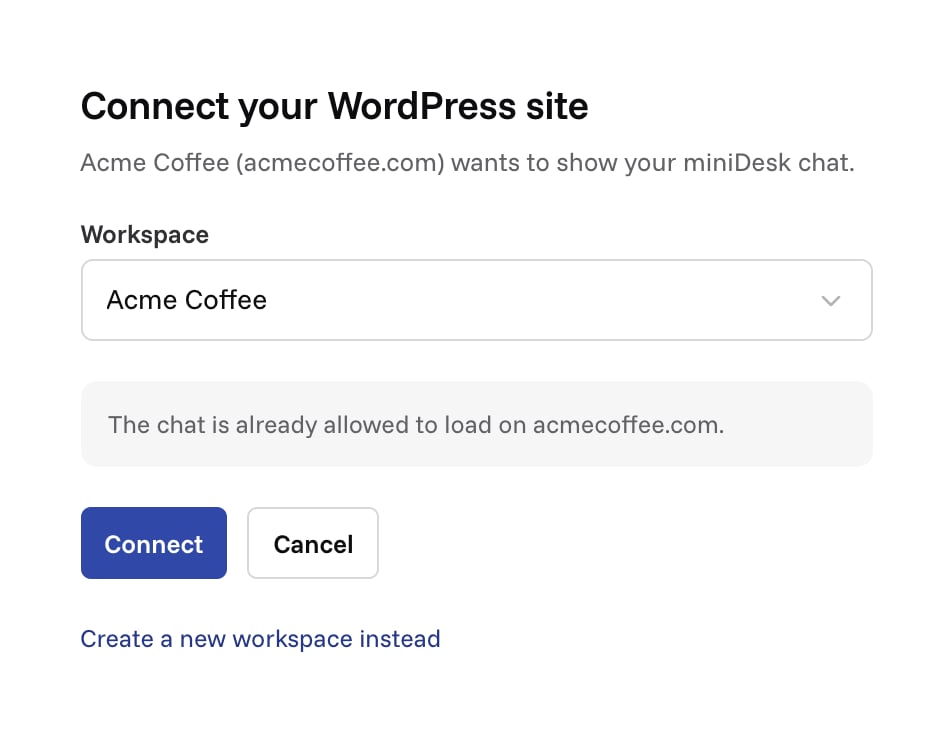
What connecting changes
- Your workspace’s website becomes this site. The chat only loads on your workspace’s website, so this is what lets it appear here. If the workspace already had another website, the Connect screen asks before switching.
- miniDesk starts reading your site, so the AI can answer from your pages.
- Your workspace gets a chat, or the plugin uses the one it already has. A workspace has one chat, so the chat on this site and the one on your Channels page are the same.
The miniDesk AI page in WordPress
Everything the plugin does is on one page, miniDesk AI in your WordPress admin menu. On a connected site it has: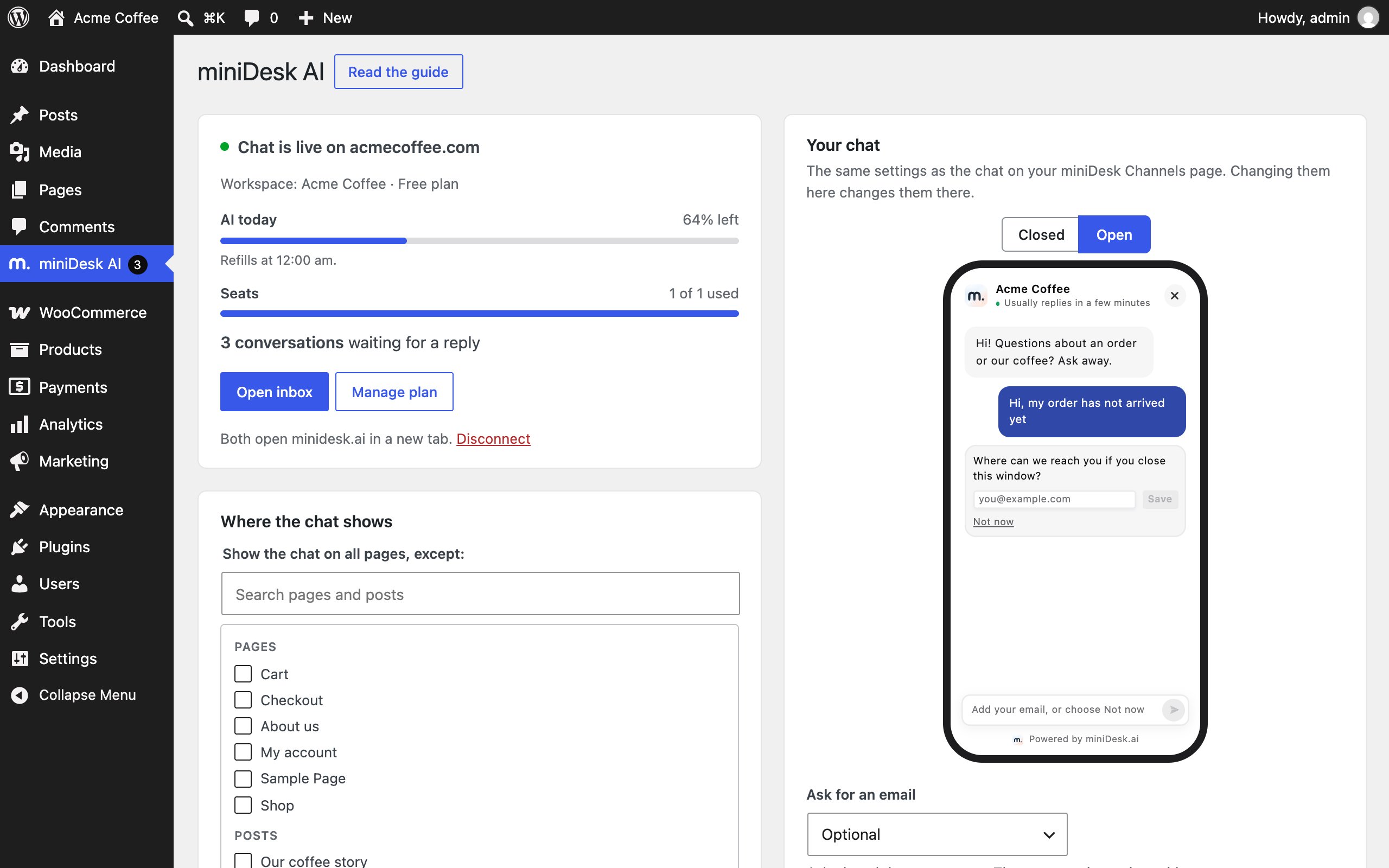
- A status card: which site the chat is live on, your workspace and plan, how much of your AI allowance and how many seats are left, and how many conversations are waiting for a reply. Open inbox and Manage plan open miniDesk.ai in a new tab.
- Where the chat shows: the pages and paths where the chat is hidden.
- AI replies: whether the AI answers by itself.
- WooCommerce, when WooCommerce is active: see WooCommerce.
- Your chat, on the right: how the chat looks, with a live preview.
Changing how the chat looks
The Your chat card has the same settings as the chat on your miniDesk Channels page: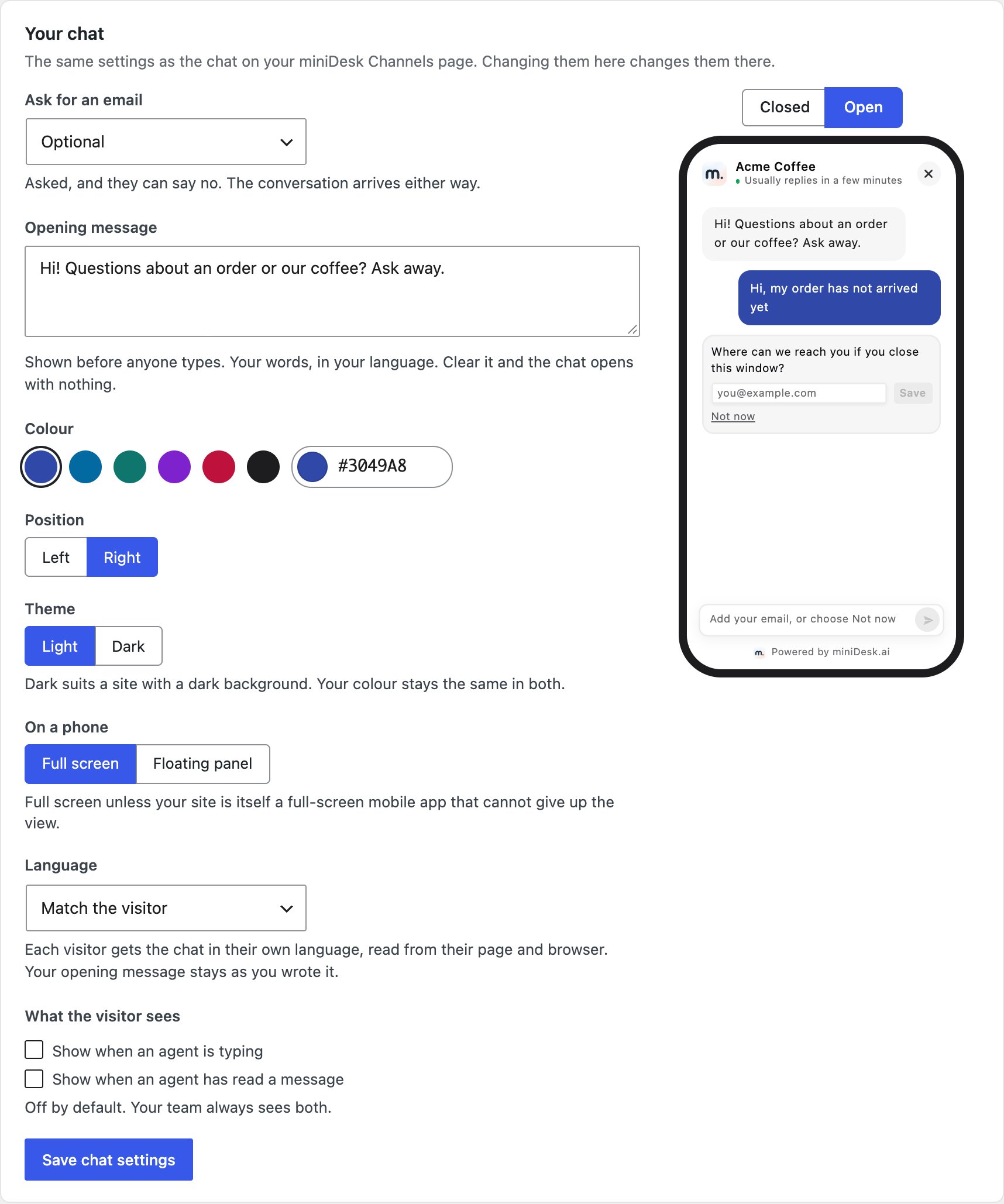
The phone beside the settings shows your chat as you change them, before you
save. Closed and Open switch between the button in the corner and the
open chat. Click Save chat settings and your site shows the new look
straight away.
These are one set of settings, not a copy. Saving in WordPress changes them in
miniDesk, and a change made in miniDesk shows up in WordPress the next time you
open the page. Only the settings you changed are sent, so saving never undoes
a change someone else made in miniDesk in the meantime.
Some colours are refused because neither white nor black text reads well on
them. The page says so before you save; try one a little lighter or darker.
Only an owner of your miniDesk workspace can change a chat. WordPress makes
the change as the person who connected the site, so if that person is no
longer an owner, the page says so and nothing changes. Ask an owner to change
it in miniDesk, or to connect the site again.
Hiding the chat on some pages
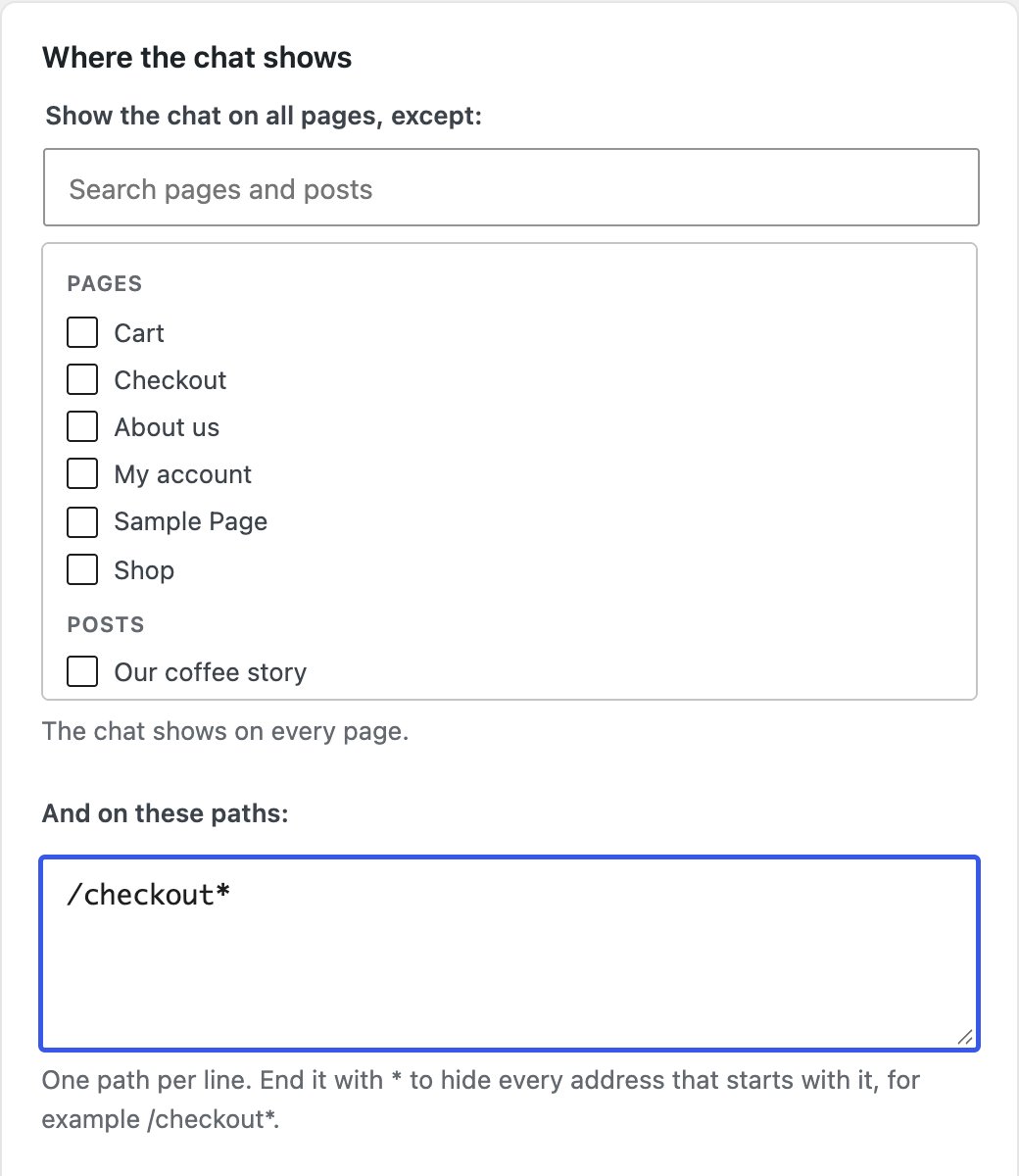
Under Show the chat on all pages, except, tick the pages and posts where the chat should not appear. The search box above the list finds a page by its title. You can also hide the chat by address. Under And on these paths, write one path per line. End a path with* to hide every address that starts with it:
/checkout* hides the chat on /checkout, /checkout/payment and any other
page under /checkout.
Letting the AI answer by itself
Under AI replies, Let the AI answer by itself decides whether the AI replies to chat visitors on its own or writes drafts for your team:- On: the AI answers chat visitors by itself when it is confident.
- Off: the AI writes a draft, and someone on your team sends it.
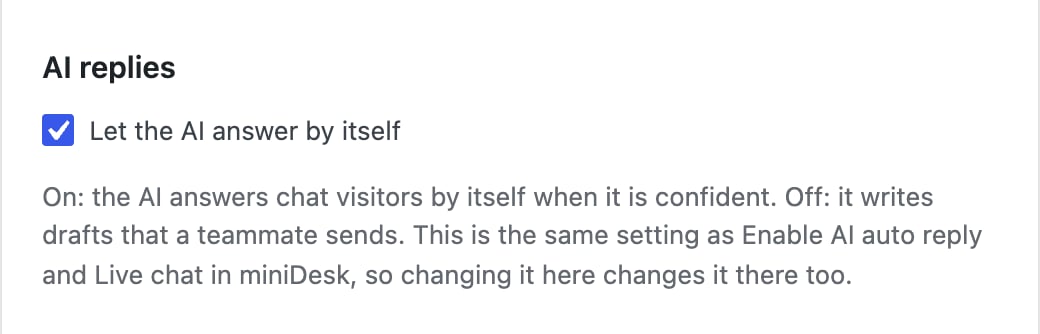
- Ticking it turns on Enable AI auto reply and Live chat in miniDesk. Enable AI auto reply is the main switch, so the other channels ticked there start getting automatic answers too.
- Unticking it turns Live chat off in miniDesk. Your other channels keep what you set for them.
- The box shows ticked only when both are on in miniDesk. A change made there shows up in WordPress within a minute.
Signed-in visitors
When someone signed in to your WordPress site opens the chat, miniDesk knows who they are. Their name and email appear in your inbox, and their conversation follows them from page to page. The plugin vouches for them: it signs who is signed in, and miniDesk only trusts that signature. A visitor cannot pretend to be someone else by typing an email. Nothing about the visitor is written into the page itself. The chat asks your site for it after the page has loaded, so a cached page is safe to serve to anyone. On a shared computer, a visitor who signs out, or another who signs in, never continues the previous person’s conversation.The waiting count
The number of conversations waiting for a reply shows on the miniDesk AI item in your WordPress admin menu and in a miniDesk AI box on the WordPress Dashboard. It is checked at most once a minute while you use the admin, and every hour in the background.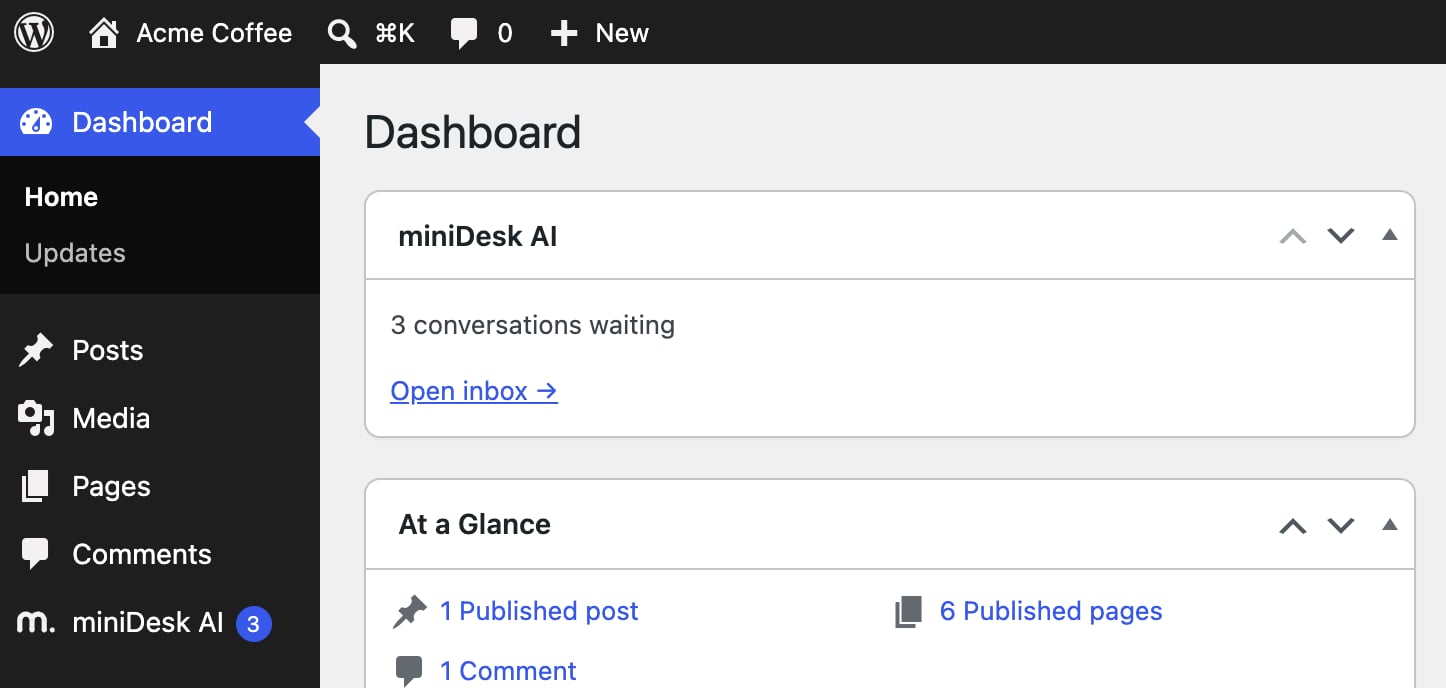
Using a public key instead of connecting
On the miniDesk AI page, Paste a public key instead adds the chat without connecting. In miniDesk, open Channels, then your chat, then Install, and copy the part of the code that starts withmdw_.
The chat works, but the rest of the plugin does not:
- Signed-in visitors’ name and email are passed to the chat but not verified.
- There is no waiting count, no Your chat card, no AI switch and no WooCommerce orders.
- You set your website in miniDesk yourself, so the chat is allowed to load on your site.
Languages
The plugin’s pages in WordPress are in English, French, German, Spanish and Portuguese (Brazil), the same languages the chat speaks to your visitors. They follow the language set for your WordPress admin, under Settings → General or in your user profile.Staging and development copies
Hosting companies often copy a whole site, plugin settings included, to make a staging site. The plugin notices when it runs somewhere other than the site it was connected on. The copy shows This looks like a copy of your site, turns its chat off, and never sends anything to your workspace. The original site keeps its connection. To use miniDesk on the copy, click Connect this site there.Page caches
When you connect, disconnect, save a public key or change where the chat shows, the plugin clears the cache of these caching plugins, so visitors see the change straight away:- LiteSpeed Cache
- WP Rocket
- W3 Total Cache
- WP Super Cache
Disconnecting
Click Disconnect on the miniDesk AI page in WordPress, or open the WordPress row on your miniDesk Channels page and click Disconnect site.
What the plugin sends to miniDesk
- When you connect: your site’s address and name, the WordPress, WooCommerce and plugin versions, and a public key the plugin uses to sign who is signed in.
- About once an hour, and when an administrator opens the WordPress admin: the same versions and which of the plugin’s switches are on. miniDesk answers with the waiting count, your plan, your AI and seat usage, and your chat’s settings.
- While the miniDesk AI page is open: nothing. The preview on the Your chat card is drawn by the plugin itself; only your workspace logo is loaded from miniDesk.
- When a visitor uses the chat: their messages, and their name and email if they are signed in.
Troubleshooting
Your site cannot reach miniDesk
The page says This site could not reach miniDesk after you connect. Connecting ends with your site asking miniDesk for its key. That request goes from your server, not your browser, and it did not get through within 10 seconds.- Ask your host whether your site can make outgoing HTTPS requests to
api.minidesk.ai. - If your
wp-config.phpsetsWP_HTTP_BLOCK_EXTERNAL, addapi.minidesk.aitoWP_ACCESSIBLE_HOSTS. - If a security plugin or a firewall blocks outgoing requests, allow
api.minidesk.aiin it.
The connection request expired
The page says That connection request expired or was already used. A connection request works once, for one hour, and only for the administrator who started it. Click Connect with miniDesk again, signed in to WordPress as the same person who finishes on miniDesk.ai.miniDesk cannot connect sites right now
The site tried to connect too many times in a short while, or miniDesk is briefly unavailable. Wait a few minutes, then click Connect with miniDesk again.The chat does not appear on my site
- Check that the page is not hidden under Where the chat shows.
- Clear your page cache if you use a caching plugin not listed above.
- With a public key only, check that your workspace’s website in miniDesk is this site. The chat only loads there.
- On a staging copy, the chat is off until you connect that site.
The chat settings cannot be loaded
The Your chat card says Your chat’s settings cannot be loaded from miniDesk right now. Your site could not reach miniDesk when the page loaded. The chat on your site is not affected. Reload the page in a minute. If it keeps happening, check that your host allows your site to make outgoing requests toapi.minidesk.ai.