

Discord is not a channel your customers use. Nobody messages you on
Discord. It is a second place for your team to read and answer the
conversations that arrive by email, chat widget, contact form, Telegram,
Instagram or Messenger.
What you need
A Discord server you can add a bot to, which means the Manage Server permission on it. Two minutes. Nothing to host and nothing to install. Unlike Telegram, the bot is ours. You are inviting the miniDesk bot into your server rather than creating one of your own, so there is no token to copy and nothing to keep safe.Set it up
1
Open the Discord card
In the dashboard, go to Channels. Discord is under Add an
integration, at the bottom of the screen. Press Connect, then
Continue to Discord. Only an Owner sees the Channels screen at all.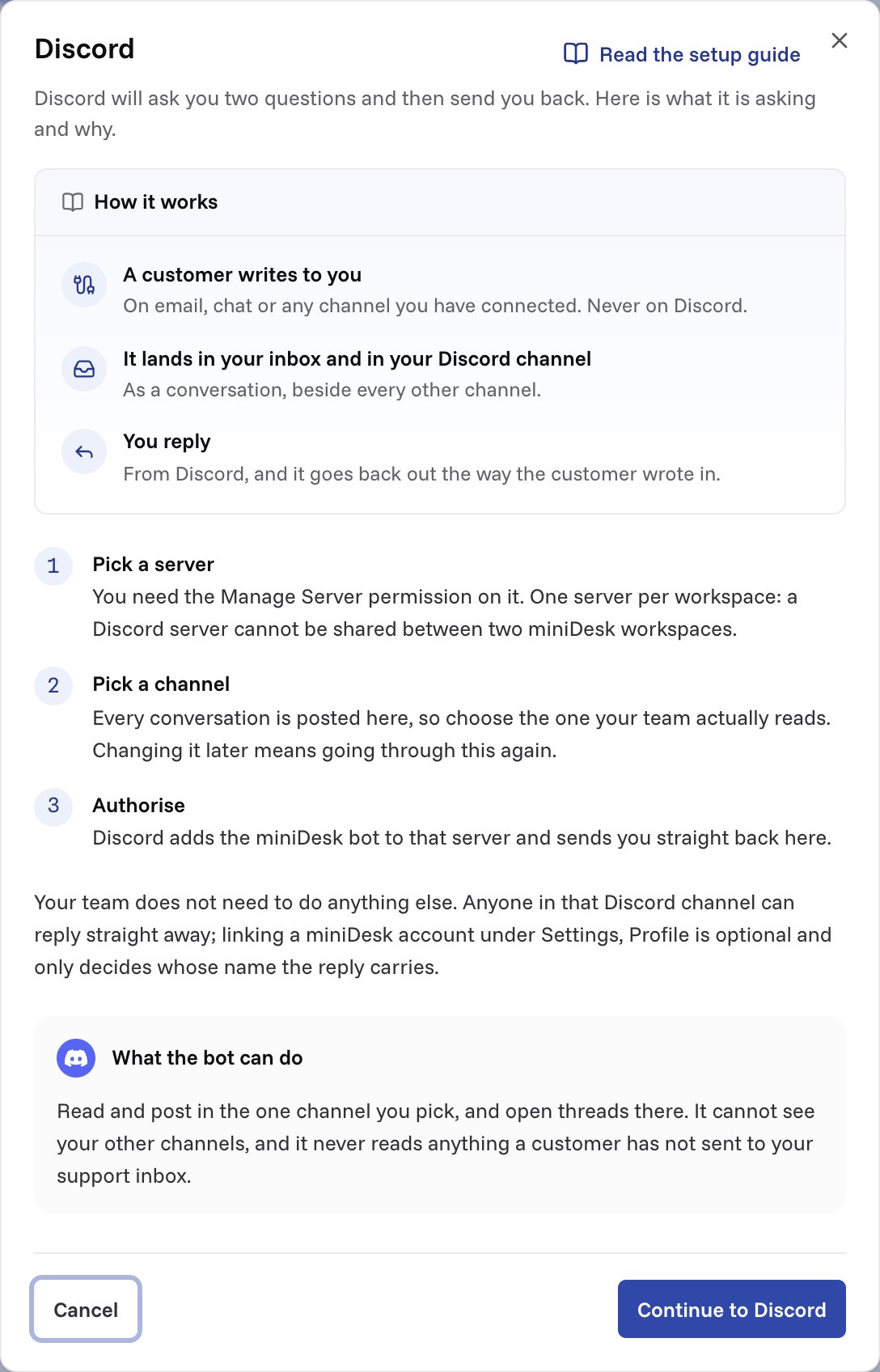
2
Pick the server and the channel
Discord’s own screen asks for both. Pick the channel your team actually
reads. Everything is posted there, and changing it later means going
through this again.
3
Wait for a conversation
Discord sends you back to the dashboard, where Discord now sits under
Connected integrations. It says No conversations yet until the
next one arrives and posts a card, because a message actually landing is
the only proof the setup works.
What a conversation looks like
A card in the channel, with the customer’s name, what they wrote, and the conversation number. Under it, a thread: every later message on that conversation lands there, the customer’s, your team’s and the AI’s, so the thread reads like the conversation does. Internal notes are not posted. Neither the card nor the thread is a copy of the conversation: each message is cut at 400 characters, and Open in miniDesk takes you to the full thing, with the history, the customer’s details and any attachments. A conversation that was already open when you connected Discord gets its card the next time someone writes on it. If somebody deletes a card’s thread, later messages on that conversation go to the channel itself.Answering
There are two ways, and both send.- Type in the thread. Anything a person writes in a card’s thread goes to the customer. A ✅ appears on your message once it has gone out. If it did not reach them, the bot says so in the thread instead.
- Press Reply. Discord opens a box. What you type goes to the customer, up to 4000 characters.
Linking your account
Optional, and nothing to do up front. Replies go out whether or not you have linked; linking is what signs them with your name instead of your Discord name. Send one unlinked and you are offered the link: in the confirmation only you see when you used Reply, or once by direct message when you typed in the thread. Or do it in advance from Settings → Profile, under Integrations, with Link my account. It is there rather than on the Channels screen because each person does it for themselves, and the Channels screen is Owner-only. You link once, and it covers every workspace you belong to. One Discord account belongs to one person: it can be linked to one miniDesk user at a time.Who can answer
Anyone who can see that Discord channel can answer your customers. Access to the channel is the whole of the permission, so connect a channel your team controls, not one guests or the public can read. Linking is about attribution, not access. A linked reply is authored by that member and shows their name everywhere in miniDesk. An unlinked one still sends, recorded under whatever their Discord account is called, pointing at no member: a Discord name is chosen by its owner and we have not checked it against anything. If you would rather that were a permission, keep the channel private and manage it with Discord’s own roles. That is the control, and it lives on Discord’s side.Turning it off
Open Channels, then Configure on the Discord row. The Post conversations to Discord switch stops cards being posted and stops replies being accepted from Discord, including anything typed in a thread. The connection is kept, so you can switch it back on. Disconnect Discord removes it entirely. Cards already in your Discord channel stay where they are, because they are your server’s history and not ours to delete. Their buttons stop working and say so. Conversations are untouched either way. They are in your inbox, exactly as they were.Limits worth knowing
- One Discord server per workspace. A server cannot be shared between two workspaces: a button press only tells us which server it came from, so a shared one would be ambiguous. Two workspaces need two servers.
- No attachments from Discord. Files on a message typed in the thread are left out, and a message that is only a file is not sent. Send those from the dashboard.
- 4000 characters per reply in the Reply box, which is Discord’s limit on the box.
- Resolving and assigning are not on the card yet. Use Open in miniDesk.
If nothing is posting
The row says 'No conversations yet'
The row says 'No conversations yet'
Nothing has arrived since you connected. Send yourself a test conversation
on any channel and watch the Discord channel.
The row says 'Cannot post to that channel'
The row says 'Cannot post to that channel'
The bot cannot see the channel it is pointed at. In Discord, open that
channel’s permissions, add the miniDesk.ai role, and allow View
Channel. A private channel does not inherit the bot’s server
permissions. The same thing happens if the bot was removed from the
server: add it back.
I typed in the thread and nothing happened
I typed in the thread and nothing happened
Check that Post conversations to Discord is on. While it is off,
messages typed in a thread are not sent. A message that is only a file is
not sent either.
Settings says the Discord account is already linked
Settings says the Discord account is already linked
That Discord account is linked to a different miniDesk user. Unlink it
there first, or link a different Discord account. One Discord account
belongs to one person.