

The AI reads Supabase only for a customer whose identity is proven: a visitor
your site signed in, the sender of an email or a contact form, or someone who
confirmed their email with a code. Their user id or email is how miniDesk
finds their rows. See
how the AI knows who it is talking to.
Why it cannot change anything
miniDesk never asks for a Supabase API key, a secret key or a database password. You connect with Supabase’s own sign-in, and miniDesk asks for two permissions, both read-only:- Projects: Read, to list the projects you can pick from;
- Database: Read, to list a project’s tables and read them.
supabase_read_only_user. So even a query
that tried to write would be refused by Supabase itself, and miniDesk never
writes one: it builds each select itself, for one table, filtered on the
verified customer, at most 20 rows.
The read-only query endpoint is a Beta feature of Supabase’s Management API.
Connect
In miniDesk, go to Channels & integrations and choose Connect on the Supabase card. You need to be an owner of the workspace. The dialog takes you through two steps.1
Continue with Supabase
Choose Continue with Supabase and approve miniDesk in Supabase. You come
back to the same dialog, on the next step.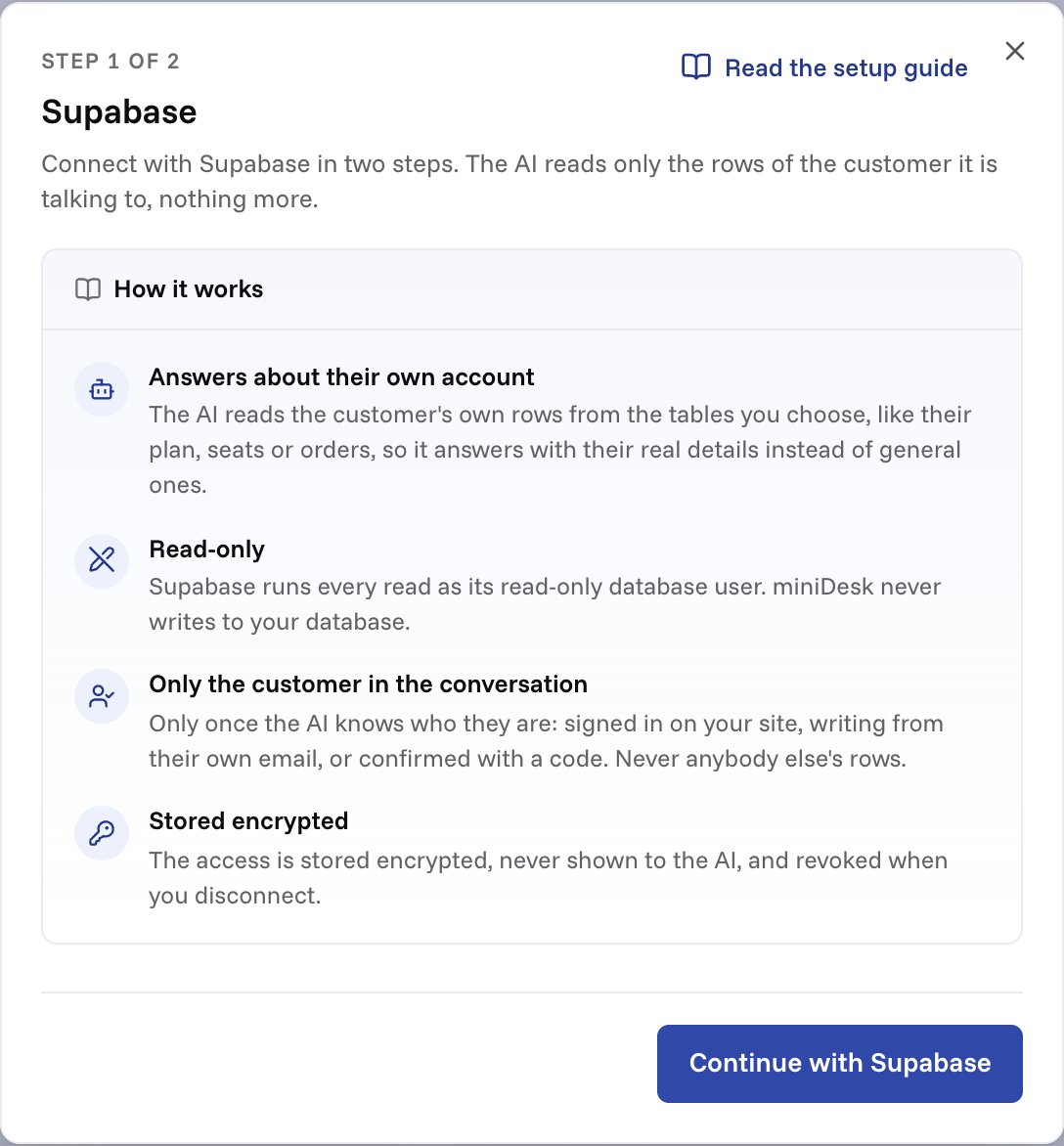
2
Pick the project and its tables
Pick the project where your app keeps its customers. Its tables and views
in the 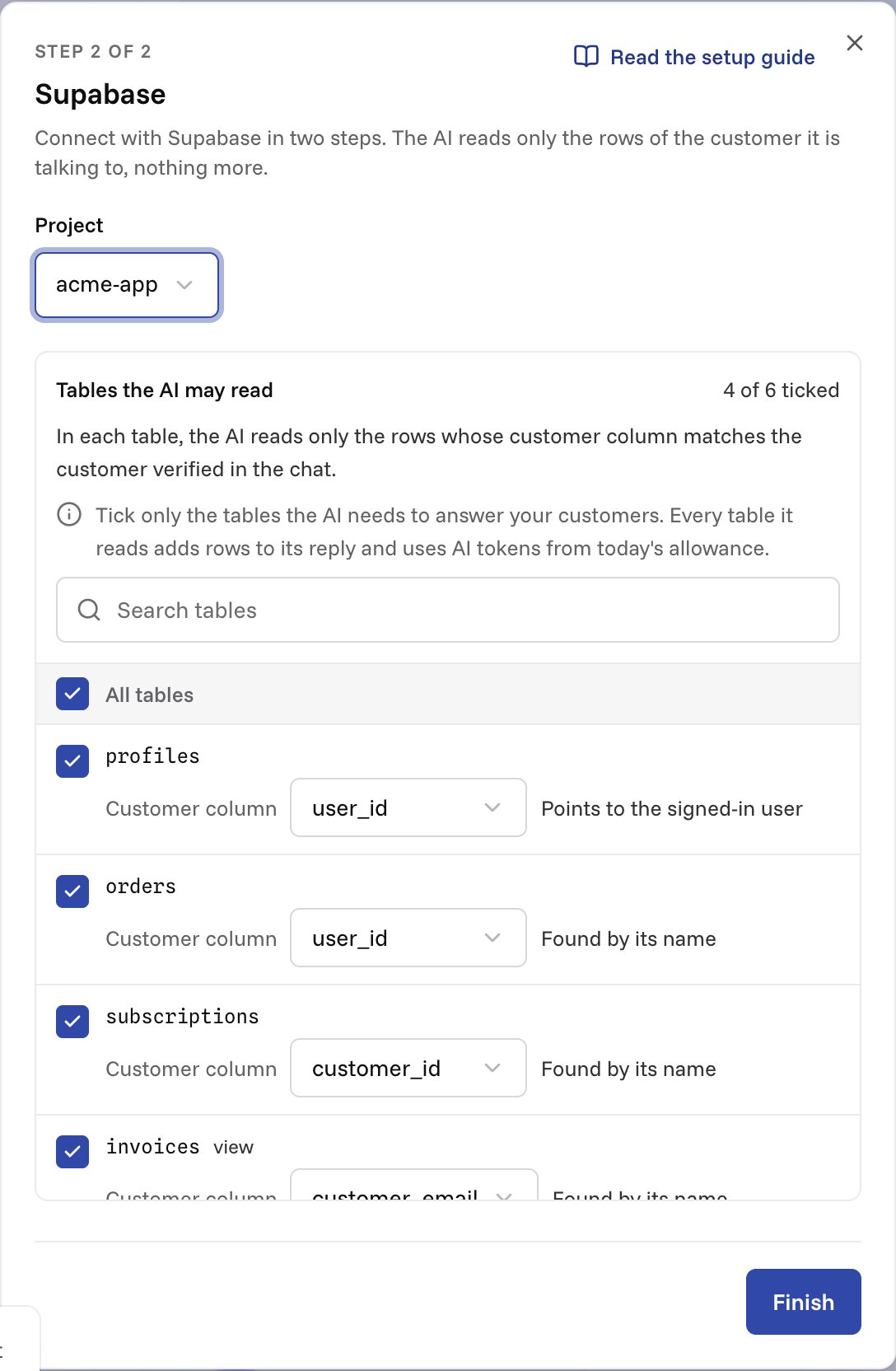
public schema show up right under it. Tick the ones the AI may
read. Each needs a Customer column: the column that holds the
customer’s user id or email. miniDesk finds it for you:- a column with a foreign key to
auth.users, the surest link to a signed-in user (shown as Points to the signed-in user); - else a column named like a user id, such as
user_id,owner_idorcustomer_id; - else a column named like an email, such as
emailorcustomer_email(shown as Found by its name).
What the AI sees
When a proven customer asks something your tables answer, the AI picks a ticked table, and miniDesk reads it:$1 is the customer’s user id, or their email for an email column (compared
without case). It comes from how the customer was proven (the token your server
signed, the address they wrote from, or a code), never from the AI or the
visitor, so a customer cannot read anyone else’s rows by asking. With only an
email, the user id is found in Supabase Auth.
Turn it off or disconnect
On Channels & integrations, open Supabase:- Change the project or the ticked tables, then choose Save.
- Switch off Let the AI read Supabase to stop the lookups and keep the connection.
- Choose Disconnect to remove it. miniDesk’s access is revoked in Supabase as well.
Continue with Supabase needs miniDesk’s Supabase app to be set up on the
server. On a server without it, the dialog says Supabase is not available.