

Install
In self-hosted n8n, go to Settings → Community Nodes → Install. Enter@minidesk/n8n-nodes-minidesk. An instance owner may need to allow verified community nodes first.
The package is also available on npm at npmjs.com/package/@minidesk/n8n-nodes-minidesk.
Get an API key
Create an API key in miniDesk under Settings → API. Use keys made just for n8n, so you can revoke them on their own.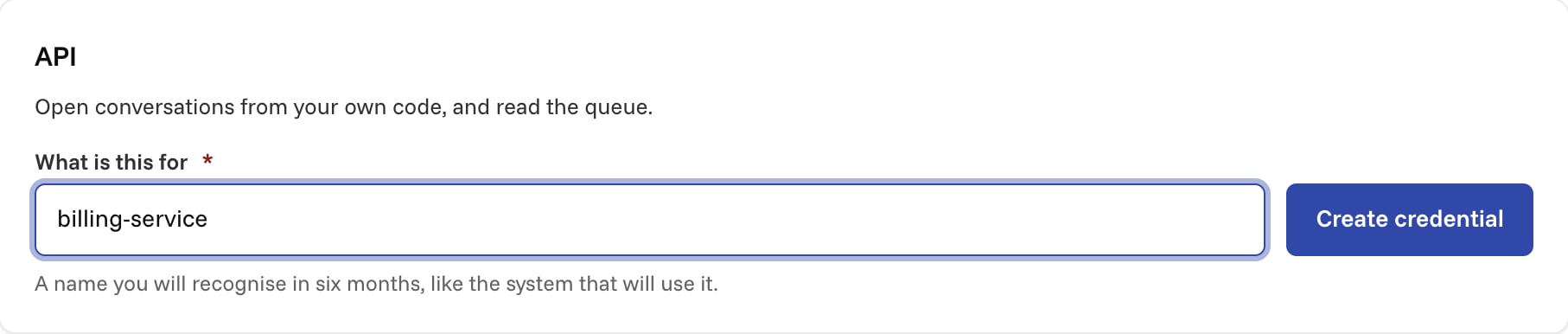
What you can do
The miniDesk node gives you operations grouped by resource.AI Draft
- Create: ask miniDesk’s AI to write a draft reply. The draft waits in the conversation for review. If a draft is already waiting, you get that one.
Conversation
- Create: save a message a customer sent you elsewhere as a new conversation. The message must be the customer’s own words, and miniDesk may email them an AI answer. miniDesk’s AI may change the category and priority after the conversation arrives.
- Get: get a conversation. Turn off Simplify to include its messages.
- Get Many: get many conversations. Filter by status, priority, category, assignee, or search words.
- Mark as Spam: move a conversation out of the inbox into spam.
- Message Customer: email a customer from your team to start a new conversation. This reaches a real person. Returns
deliveryassentorheld. Held means the email did not go out, usually because a sending limit kept it back. - Update: change the status, priority, category, or assignee of a conversation.
Customer
- Create or Update: create a new customer record, or update the current one if it already exists. If the customer exists, only the name and note change. The email and external ID are set only when the customer is created.
- Get: get a customer by ID or email.
- Get Many: get many customers. Filter by search words.
Knowledge
- Add Document: add a reference document. The AI will not read it until an owner approves it in miniDesk.
- Update Document: update a reference document. The updated document waits for approval again.
- Delete Document: delete a reference document.
- Get Many: get many reference documents.
Message
- Send Reply: send a reply to the customer. This reaches a real person and cannot be unsent.
- Add Internal Note: add an internal note to the conversation. Only your team sees it. The customer never does.
- Get Many: get many messages in a conversation. It never returns internal notes.
Team Member
- Get Many: get many team members. Choose whether to include members who have left or were deactivated.
Trigger
The miniDesk Trigger node starts workflows on these events:- New Conversation: a customer starts a conversation. Its first message comes with it.
- New Customer Message: a customer writes again in a conversation that already exists.
- Conversation Assigned: a conversation gets a new assignee, or loses its assignee.
- Conversation Status Changed: a conversation moves to another status, for example resolved.
id.
WEBHOOK_URL (N8N_WEBHOOK_URL on newer n8n versions) on the n8n instance must be its public https address.
If miniDesk pauses the webhook after failed deliveries, n8n keeps showing the workflow as active while events are dropped. Resume the webhook in miniDesk under Settings → Webhooks, or turn the workflow off and on. An owner’s pause can only be lifted in miniDesk. If an owner paused the webhook in miniDesk, activation fails with “An owner paused this webhook. Ask them to resume it in miniDesk.”
Safety
Reference documents added from n8n wait for an owner’s approval before the AI reads them.
Examples
New Conversation to Slack
- Add the miniDesk Trigger node. Select the New Conversation event.
- Add the Slack node. Choose Send Message. In the message, include the conversation reference, customer email, and first message from the trigger output.
Notion Page to Reference Document
- Add the Notion Trigger node. Listen for new pages in a database.
- Add the miniDesk node. Choose Knowledge: Add Document. Set the title and content from the Notion page.
- Approve the document in miniDesk under AI Agent → Knowledge before the AI reads it.